GraphPad Prism 6 is a powerful combination of biostatistics, curve
fitting and scientific graphing
GraphPad PRSIM was originally developed for the life sciences. The
functions were expanded
over the years and thus it is nowadays
widely used in all scientific fields. More than 200,000 scientists
in more than 110 countries rely on PRISM.
It is also used in academia to teach and learn statistical
methods. PRISM is not meant to act as a full replacement for one
of the comprehensive and expensive software packages in the field
of statistics (SAS, JMP, SPSS, SYSTAT, Minitab) , but it can
be perfectly used by non statisticians to execute the basic
hypothesis testing and model fitting, as usually done in
laboratories and in clinical research.
Characteristic for GraphPad PRISM are the comprehensive library
of statistical analysis functions for location tests
including nonparametric procedures, linear and nonlinear
regression, contingency tables and some special routines for
clinical
research. Some examples are: t-Test, One-Way- and Two-Way-ANOVA,
Kruskal-Wallis- and Mann-Whitney-Test,
Repeated-Measures-Analysis, Bland-Altman Plots and Receiver
Operating Characteristic (ROC) Curves. No software can compete in
terms of simplicity of model specification and robustness of the
results in terms of nonlinear regression. PRISM has a built
in library of 110 regression models, including meaningfully chose
starting values for the fitting process. Examples are
different dose-response-curves , Michaelis-Menten- and
Enzyme-kinetic models.
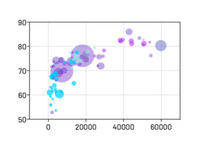
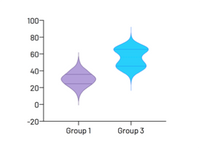
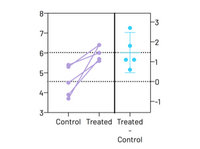
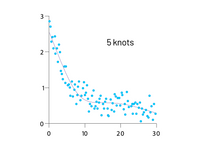
On top of this GraphPad PRISM offers a wide variety of
presentation quality graphics. The graphical engine is very
flexible
and easy to use, allowing a manifold of freedom to design your
graph. E.g. color templates can be use to set all colors for a
new graph with just a single click.
Routine analysis, which is very time consuming, can be automated
.
The magic function edits graphs, so they receive the same layout
with just a few clicks. The wand function duplicates a
complex set of analysis based on one dataset, onto a new dataset.
The complete analysis outputs as well as all the graphs are
duplicated with a single click. The "template" function is a
special way to save a project. A template is an empty container
for data, analysis, graphs and presentations. Whenever a template
is opened you only need to import data and all subsequent
steps of the analysis are already done. All that is left to do is
save the project and print the results.
The online help is extremely context sensitive. It is written
in a very clear and concise language that does not use
unnecessary statistical jargon, but still has the depth that
allows you to take safe decisions and interpretations based on
your data and results.
Graphpad PRISM is basically unsurpassed in its ease of use. The
process of picking the correct statistical analysis
procedure and the proper interpretation of the results are guided
by the
help system. The
possibility to pick the wrong procedure or to
misinterpret the data is minimized.
New Analyses ANOVA, multiple comparisons and more
Two-way ANOVA with repeated measures in both factors.
Multiplicity adjusted (exact) P values for multiple
comparison tests. Read more about this #1 request in our
blog.
New post tests - Fishers unprotected Least Significant
Difference (LSD) and Holm-Sidak.
Run a set of t tests (one per row) at once, correcting for
multiple comparisons with Bonferroni or by contolling the
False Discovery Rate (FDR).
Follow two-way ANOVA with tests for simple or main
effects. Don't worry if you don't know what that means -
Prism 6 presents those choices graphically so the meaning is
obvious.
Greenhouse-Geisser correction in repeated measures one-way
ANOVA to avoid the need to assume sphericity.
Grubbs outlier detection. Our most popular QuickCalc web
calculator is now part of Prism.
Kolmogorov-Smirnov test to compare two groups (an
alternative to the Mann-Whitney test).
Ratio t test
Improved curve fitting
Fit to implicit and differential models.
Write more complex models.
Quicker interpolations. Prism 6 adds a new analysis that
streamlines the process of interpolating values from
standard curves.
Weight your fit by 1/Y^k
Monte-Carlo simulations without writing scripts.
Pie charts and more
Prism 6 adds a new kind of data table for parts of whole
data. Plot pie charts, donut plots and more.
Compare the observed distribution of values with
theoretically expected values with the chi-squared or
binomial test.
Compute each value as a fraction or percentage of the
column total.
Work with larger data sets
Enter data in up to 256 data set columns.
Enter up to 256 subcolumns per data set (up from 52 in
Prism 5). This lets you compute repeated measures two-way
ANOVA with more subjects.
Format several data sets at once. Want to plot alternating
columns as dotted lines? Now you can do it in one step.
View and edit all of your column titles at once. Great for
large files!
Choose the size, shape and color of your data points right
from the data table. You can even select any contiguous
block of data and make choices for that specific subset of
your data table.
WAND. If you love MAGIC, you will love the new WAND. While
MAGIC reformats graphs, the WAND analyzes and graphs a new
data table to match what you have done to another.
Paste link values from results tables into a data table so
everything updates automatically. This also works if you
want to link data from one data table to another.
More ways to customize your graphs and layouts
Improved Exporting/Importing
Export graphs in more formats.
Better TIFF compression means smaller files and faster
exporting.
Import more types of graphic files into your Prism
layouts.
Control whether to use periods or commas as a decimal
separator from within Prism.
Choose how to handle excluded values when you export/paste
from Prism data tables.
If you use LabArchives, you can now open your Prism files
right from LabArchives without first downloading the files
to your computer. Prism 6 files are fully searchable within
LabArA
Paired or unpaired t tests. Reports P values and
confidence intervals.
Nonparametric Mann-Whitney test, including confidence
interval of difference of medians.
Kolmogorov-Smirnov test.
Wilcoxon test with confidence interval of median.
Perform many t tests at once, using False Discover Rate to
choose which comparisons are discoveries to study further.
Ordinary or repeated measures one-way ANOVA followed by
the Tukey, Newman-Keuls, Dunnett, Bonferroni or Holm-Sidak
multiple comparison tests, the post-test for trend, or
Fishers Least Significant tests.
Many multiple comparisons test are accompanied by
confidence intervals and multiplicity adjusted P values.
Greenhouse-Geisser correction so repeated measures one-way
ANOVA does not have to assume sphericity. When this is
chosen, multiple comparison tests also do not assume
sphericity.
Kruskal-Wallis or Friedman nonparametric one-way ANOVA
with Dunn's post test.
Fisher's exact test or the chi-square test. Calculate the
relative risk and odds ratio with confidence intervals.
Two-way ANOVA, even with missing values with some post
tests.
Two-way ANOVA, with repeated measures in one or both
factors. Tukey, Newman-Keuls, Dunnett, Bonferron,
Holm-Sidak, or Fishers LSD multiple comparisons testing main
and simple effects.
Kaplan-Meier survival analysis. Compare curves with the
log-rank test (including test for trend).
Column statistics
Calculate min, max, quartiles, mean, SD, SEM, CI, CV,
Mean or geometric mean with confidence intervals.
Frequency distributions (bin to histogram), including
cumulative histograms.
Normality testing by three methods.
One sample t test or Wilcoxon test to compare the column
mean (or median) with a theoretical value.
Skewness and Kurtosis.
Identify outliers using Grubbs or ROUT method.
Linear regression and correlation
Calculate slope and intercept with confidence intervals.
Force the regression line through a specified point.
Fit to replicate Y values or mean Y.
Test for departure from linearity with a runs test.
Calculate and graph residuals.
Compare slopes and intercepts of two or more regression
lines.
Interpolate new points along the standard curve.
Pearson or Spearman (nonparametric) correlation.
Nonlinear regression
Fit one of our 105 built-in equations, or enter your own.
Enter differential or implicit equations.
Enter different equations for different data sets.
Global nonlinear regression share parameters between
data sets.
Robust nonlinear regression.
Automatic outlier identification or elimination.
Compare models using extra sum-of-squares F test or AICc.
Compare parameters between data sets.
Apply constraints.
Differentially weight points by several methods.
Accept automatic initial estimated values or enter your
own.
Automatically graph curve over specified range of X
values.
Quantify precision of fits with SE or CI of parameters.
Quantify symmetry of inprecision with Hougaards skewness.
Plot confidence or prediction bands.
Test normality of residuals.
Runs or replicates test of adequacy of model.
Report the covariance matrix or set of dependencies.
Easily interpolate points from the best fit curve.
There are four different approaches to automation in PRISM.
All of those four approaches can help you dealing more
effectively, quickly and safely with routine tasks. For each
section in the workflow you have an automation variant.
Wand and Magic
If you love MAGIC, you will love the new WAND. While MAGIC
reformats graphs, the WAND analyzes and graphs a new data
table to match what you have done to another.
If you've already entered data onto an empty data table, it
is too late to clone, too late to duplicate a family, and too
late to open a template -- at least without copy and pasting
data. Prism provides a great tool to solve this problem: the
Wand (Wizard to ANalyze Data). Use it to analyze (and graph)
the new table just like you already analyzed (and graphed) an
existing table.
Prism Magic makes graphs consistent. Use the Prism Magic tool
in the Change section of the Prism toolbar to make one graph
look like another. You can choose any recently-used graph, any
graph in an open project, or any graph saved as an example.
Templates
A template is a Prism file that you recycle. Choose a
template, add new data, and all the analyses and graphs will
be created automatically. Templates are an older feature, and
we recommend you clone a graph, or use the Wand, instead.
A Prism template is a regular Prism file, with three
differences:
A template has the extension .pzt. When Prism opens such a
file, it will "forget" the file name and open the file
without a name. Then it will prompt for a file name when you
save. This prevents accidentally overwriting the template.
When you save a template, you can enter some brief
instructions that will appear when the template is opened.
This can be useful when you are creating a template for
others to use.
A list of templates will appear on the Open a File tab of
the Welcome dialog.
Methods
If you've already entered data onto an empty data table, it
is too late to using cloning or templates -- at least without
copy and pasting. But it is not too late to apply a method to
your data. Effectively, this means telling Prism to analyze
(and graph) the new table just like you already analyzed (and
graphed) an existing one. This is called using a Method.
Method is comparable to Wand. The difference is: a Method is
like a Template pre saved.
Besides the help system which can be seen as a comprehensive
software- and statistics reference PRISM also adds extensive
benefits:
Welcome Dialog (figure)
The welcome dialog functions as the central steering system
for PRISM. It defines the different project types which
trigger different types of graphs as well as different
statistical analysis. The help systems offers a quick overview
of the areas of application for each project type. A simple
click on "Learn more"reveals a comprehensive and concise
description for each project type.
Learn (figure)
The welcome dialog functions as the central steering system
for PRISM. It defines the different project types which
trigger different types of graphs as well as different
statistical analysis. The help systems offers a quick overview
of the areas of application for each project type. A simple
click on "Learn more"reveals a comprehensive and concise
description for each project type.
Analysis Checklist (figure)
The new help system adds another focal point. After running
an analysis you often ask yourself: are these results valid?
The "Analysis Checklist", which is available for every built
in statistical analysis, is our answer. To ensure the validity
of your results, all you need to do is walk through the steps
outlined in the checklist. The checklist is sorted, so that
the first entry shows the worst violation of analysis
assumptions. The following entries in the list range to the
least problematic assumption violation.
Some features with Prism for Windows require
Internet Explorer 6 and Flash Player 7 or higher
Oparation System
Windows 32/64 bit (7,Vista, XP, 2000);
Prism runs fine as a desktop app under Windows 8,
but is not a Metro app so will not run on Windows 8 RT
(tablet) computers.
Intel and PowerPC-based Mac computers
using OS X 10.4 (Tiger), 10.5 (Leopard), 10.6 (Snow Leopard), 10.7
(Lion) or 10.8 (Mountain Lion)